
Field Settings
Overview
The Field Settings menu is used to configure protection settings for database fields. This menu allows administrators to select a connection, browse available schemas and tables, view table columns, and assign protection templates to specific fields.
Field-level protection is used to determine how OneDB handles sensitive data, such as whether a field should be masked, processed with a masking template, or left without protection.
Access Field Settings Menu
To access this page, go to:
Database Server > Field SettingsThe Field Settings Management page displays the list of available database connections.
Field Settings Management
The first page displays the available connections that can be configured for field-level protection.
| Column | Description |
|---|---|
| Connection Name | The name of the configured database connection. |
| Database / Schema | The database or schema associated with the connection. |
| Database Type | The database engine type, such as MySQL, PostgreSQL, Oracle, or MSSQL. |
| Action | Opens the field settings page for the selected connection. |
To configure field protection for a connection, click the action icon on the selected row.
Select Connection
After selecting a connection, the system displays the field settings page for that connection.
The page shows the selected connection name and database type.
Example:
Connection Name : postgresql-local / POSTGRESQLFrom this page, administrators can filter database objects by schema and table.
Select Schema or Database
Use the Schema / Database dropdown to select the schema or database that contains the table to be configured.
Example schema options:
information_schema
pg_catalog
public
After selecting a schema or database, OneDB loads the available tables under the selected schema.
When the data is loaded successfully, a notification will be displayed:
Data has been loaded!Select Table
After selecting the schema or database, use the Table dropdown to select the table that contains the fields to be protected.
Once the table is selected, OneDB displays the list of columns available in the selected table.
The field list includes the following information:
| Column | Description |
|---|---|
| Table / Collection | The table or collection where the field belongs. |
| Column / Field Path | The database column or MongoDB field path. |
| Type | The database field or column type. |
| Protection | The protection template assigned to the field. |
| Mode | Determines whether OneDB processes the field using Tokenize or Detokenize mode. |
Configure Field Protection
The Protection dropdown allows administrators to assign a protection template to each field.
The available protection options are populated from the templates that have been configured in the Template menu.
| Protection Option | Description |
|---|---|
| No Setting | No protection template is applied to the field. |
| Direct Masking | Replaces the entire returned field value with a masking pattern while preserving the original database value. |
<template_name> |
Applies the selected protection template to the field. |
Example template options may include:
App_With_Masking
App_With_Masking_Regex
App_Without_Masking
Select the appropriate template for each field that requires protection.
Example:
Table  : users
Column : username
Type   : varchar
Protection : App_With_Masking
Mode : Tokenization
Suggested note:
Protection templates must be created in the Template menu before they can be selected in Field Settings.
Configure Protection Mode
The Mode setting determines how OneDB processes data for a field that uses a tokenization-based protection template.
The available modes are:
| Mode | Description |
|---|---|
| Tokenize | Treats the value stored in the database as clear data. When the field is accessed through OneDB, the value is tokenized before it is returned to the client. |
| Detokenize | Treats the value stored in the database as tokenized data. When the field is accessed through OneDB, OneDB detokenizes the value before applying the presentation or masking configuration defined by the selected template. |
The Mode option is available only when the selected protection template supports tokenization and detokenization processing.
For fields configured with No Setting or Direct Masking, the Mode setting is not applicable and remains disabled.
Tokenize Mode
When Tokenize is selected, OneDB assumes that the database contains the original clear value.
For example:
Database value:
john.doe@example.com
Processing flow:
Database Clear Value → OneDB Tokenization → Client
The value returned to the client is processed according to the selected protection template.
This mode is suitable when the database continues to store the original value while OneDB dynamically protects the data presented to database clients or applications.
Detokenize Mode
When Detokenize is selected, OneDB assumes that the database contains a tokenized value.
Processing flow:
Database Token → OneDB Detokenization → Template Presentation / Masking → Client
OneDB first resolves the token to its original value and then applies the presentation or masking configuration defined by the selected template before returning the result to the client.
For example, if a template is configured to expose only a specific portion of a value, the detokenized data is presented according to that template configuration.
Important: Detokenize Mode does not automatically mean that the complete clear value is exposed to the client. The final value returned to the client is determined by the masking or presentation configuration defined in the selected protection template.
Selecting a Mode
To configure a field:
- Select the required Protection template.
- Select Tokenize or Detokenize from the Mode dropdown.
- OneDB applies the selected mode together with the protection configuration defined by the template.
Save Field Settings
After selecting the protection template for the required field, OneDB automatically saves the configuration or saves it after the selected protection is applied, depending on the system behavior.
When the data is saved successfully, a notification will be displayed:
Data has been saved!Click OK to close the notification.
Direct Masking
The Direct Masking template forces the selected field to always return a masked value when data is accessed through OneDB.
Unlike encryption, tokenization, or format-preserving protection methods, Direct Masking does not perform any cryptographic operation and does not modify the underlying database value. Instead, OneDB replaces the field value with a masked representation before the result is returned to the client.
Because no encryption or decryption algorithm is executed, Direct Masking introduces minimal processing overhead and is suitable for high-performance environments.
The original data remains unchanged in the database.
Example direct masking
Original data stored in database:
| Username | Credit Card | |
|---|---|---|
| Adam | 4111111111111111 | adam@onedbsecurity.com |
Returned through OneDB:
| Username | Credit Card | |
|---|---|---|
| Adam | **************** | ********************** |
The number of masking characters always matches the original value length.
This behavior prevents disclosure of the actual content while maintaining consistent field formatting and application compatibility.
Performance Characteristics
Direct Masking introduces minimal processing overhead because:
- No encryption algorithm is executed
- No decryption operation is required
- No token lookup is performed
- No regular expression masking engine is invoked
The masking operation simply generates a replacement value consisting entirely of masking characters with the same length as the original data.
As a result, Direct Masking is typically the fastest protection method available in OneDB.
Typical Use Cases
Direct Masking is recommended for fields that should never be revealed to end users, including:
- Password hashes
- API Keys
- Access Tokens
- Secret Keys
- Authentication Tokens
- Internal Security Identifiers
- Cryptographic Fingerprints
- Sensitive System Configuration Values
Field Settings Flow
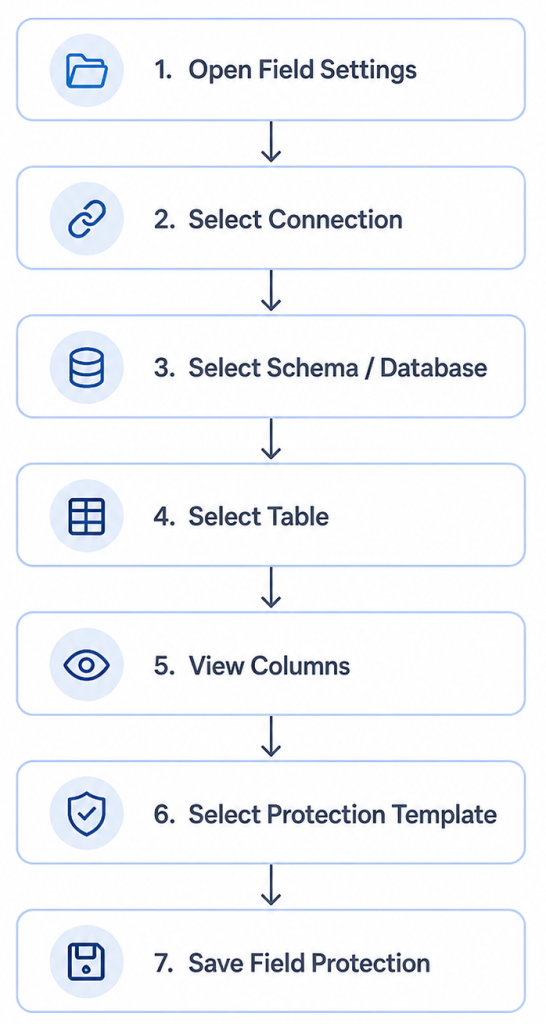
Example Field Protection Configuration
The following example shows field protection configuration for a users table.
| Table | Column | Type | Protection | Mode |
|---|---|---|---|---|
| users | id | bigserial | No Setting | |
| users | username | varchar | App_With_Masking | Tokenize |
| users | first_name | varchar | Direct Masking | |
| users | last_name | varchar | No Setting | |
| users | varchar | No Setting | ||
| users | password | varchar | No Setting | |
| users | created_at | timestamp | No Setting |
In this example, the username field is configured with the App_With_Masking protection template and first_name is configured with the Direct Masking.
Notes
Only configured database connections are displayed in the Field Settings menu.
The available schema, table, and column list depends on the selected database connection and database type.
Protection templates must be created before they can be assigned to database fields.
Use No Setting for fields that do not require protection.
Sensitive fields such as username, email, phone number, identity number, account number, or card number should be reviewed and assigned with the appropriate protection template based on the organization’s security policy.
