Databases
Overview
The Databases menu provides a database browser interface that allows administrators to view database objects and records managed by OneDB.
Through this menu, administrators can browse supported database platforms, including MySQL, Oracle Database, PostgreSQL, Microsoft SQL Server, MongoDB, and IBM Db2. Depending on the selected database type, administrators can view databases, schemas or owners, tables or collections, and the corresponding records or documents from the OneDB Admin Console.
The data displayed in this menu may appear as plain, masked or tokenized values, depending on the field configuration and data protection policy applied in OneDB.
This menu is mainly used for visibility and verification, allowing administrators to confirm that OneDB can access the managed database and display data according to the configured protection policy.
Supported Database Types
The Databases menu can be used to browse database objects from supported database platforms, such as:
| Database Type | Common Browsing Structure |
|---|---|
| MySQL | Database → Table → Records |
| PostgreSQL | Database → Schema → Table → Records |
| Oracle | Database / Service → Schema / Owner → Table → Records |
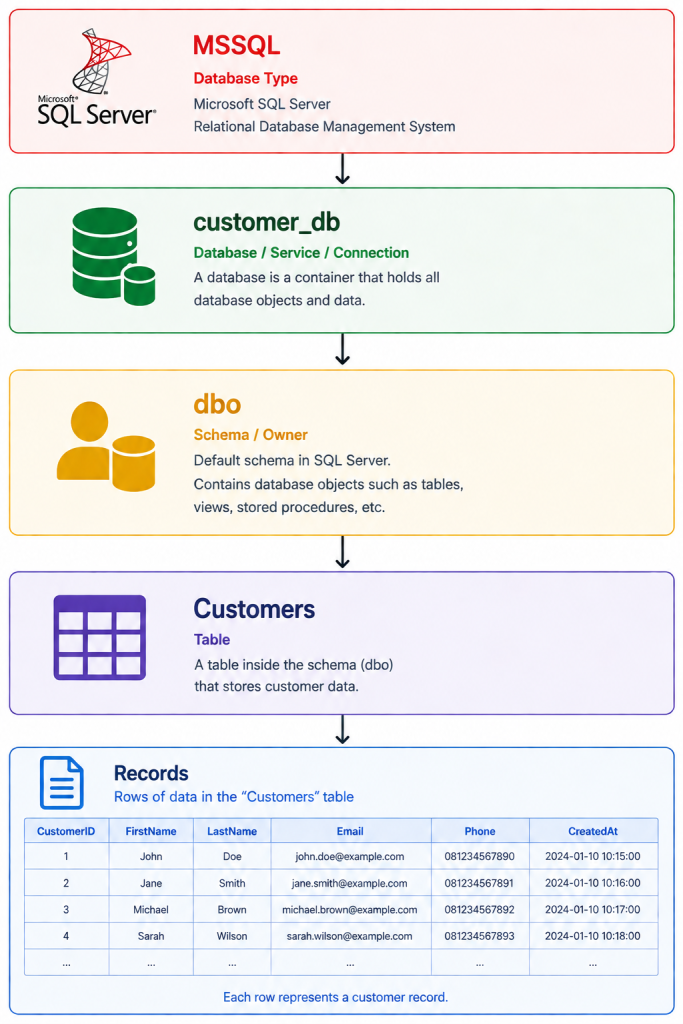
| Microsoft SQL Server | Database → Schema → Table → Records |
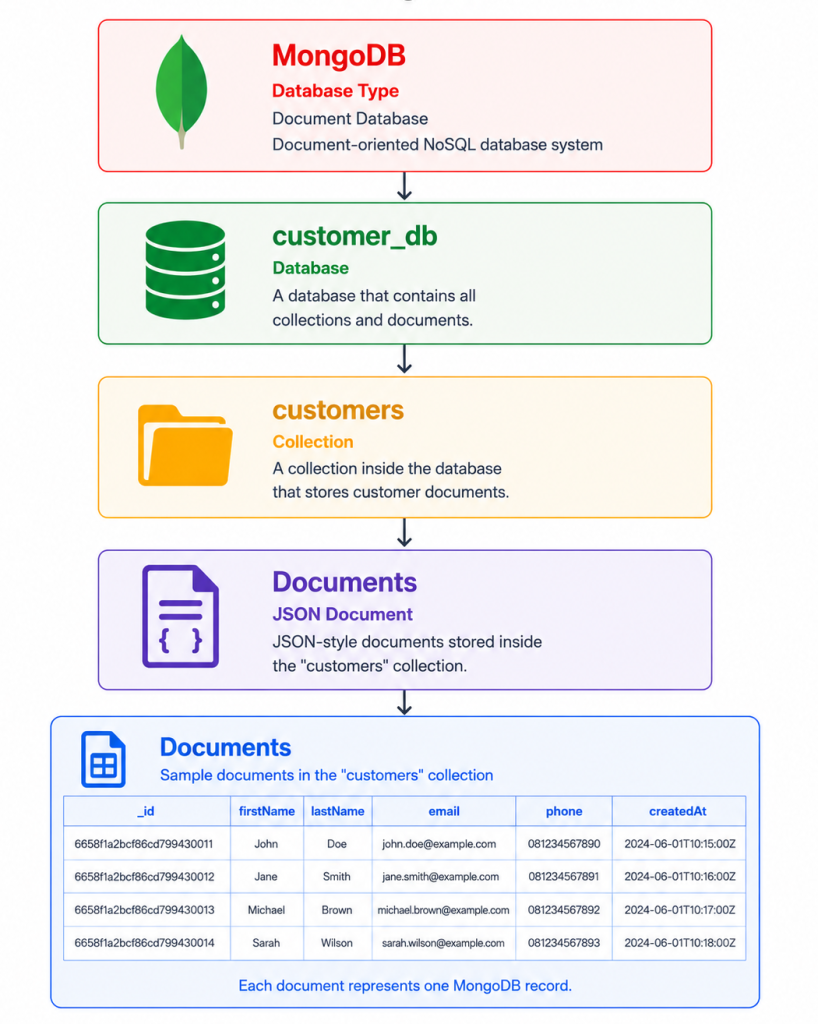
| MongoDB | Database → Collection → Documents |
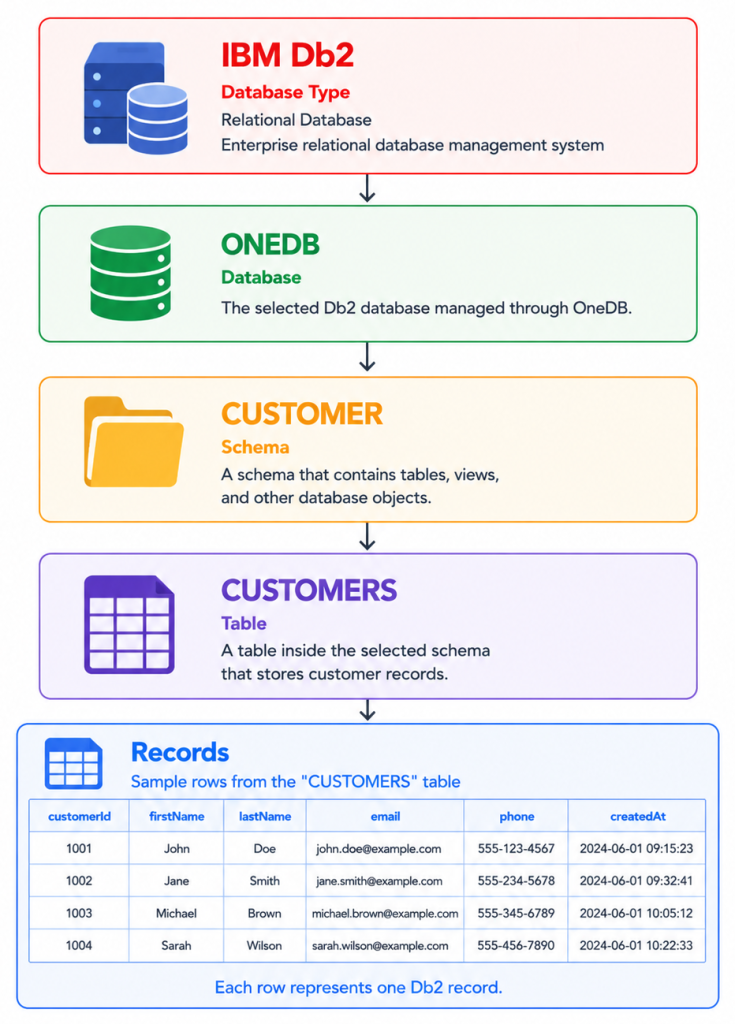
| Db2 | Database → Schema → Table or View → Records |
The displayed structure may vary depending on the database type, database permissions, and how the database connection is configured in OneDB.
Main Functions
Administrators can use the Databases menu to:
- Browse databases managed by OneDB
- View available schemas, owners, or database objects
- View tables inside a selected database, schema, or owner
- View table record count and table size, when available
- Browse records inside a selected table
- Verify whether field values are displayed as plain or tokenized values
- Confirm that database objects are accessible through OneDB
- Validate that OneDB data protection policies are applied as expected
Database Browser Navigation
The database browser follows a general hierarchical navigation flow.

Depending on the database type, some levels may be different or may not be displayed.
For example:
MYSQL

POSTGRESQL

ORACLE

Microsoft SQL Server
MongoDB
IBM Db2
Database List View
The first level shows the list of database connections or database objects available for the selected database type.
Example information displayed:
| Field | Description |
|---|---|
| IP / Host | The database server address. |
| Database / Schema / Service | The database, schema, service, or logical object name depending on the database type. |
| Database Type | The database engine, such as MySQL, Oracle, PostgreSQL, Microsoft SQL Server & MongoDB. |
| Browse Icon | Opens the selected item for further browsing. |
Schema or Owner View
After selecting a database or connection, OneDB may display available schemas, owners, or logical object groups.
This level may vary depending on the database type:
| Database Type | Common Term |
|---|---|
| MySQL | Database |
| PostgreSQL | Schema |
| Oracle | Schema / Owner |
| Microsoft SQL Server | Schema |
| MongoDB | Database |
| Db2 | Schema |
Example information displayed:
| Field | Description |
|---|---|
| Schema / Owner | The schema, owner, or object group available inside the selected database. |
| Browse Icon | Opens the selected schema or owner and displays the available tables and views. |
For some database types or configurations, OneDB may directly display tables without showing a separate schema or owner level.
Table or Collection View
After selecting a database, schema, or owner, OneDB displays the available tables or collections based on the selected database platform.
For relational databases, OneDB shows the tables available within the selected database, schema, or owner. For MongoDB, OneDB shows the collections available within the selected database.
The information displayed may include the table or collection name, the number of records or documents, the estimated size, and an action to open the selected object.
Example information displayed:
| Field | Description |
|---|---|
| Table / Collection | Displays the name of the table or MongoDB collection. |
| Records / Documents | Displays the number of records in a relational table or documents in a MongoDB collection, when available. |
| Size | Displays the estimated size of the table or collection, when available. |
| Browse | Opens the selected table or collection to display its records or documents. |
Administrators can use this view to confirm that database objects are accessible through OneDB and to continue browsing the data contained in the selected table or collection.
Example:
| Table / Collection | Records / Documents | Size |
|---|---|---|
| Customers | 1,250,000 | 128.50 MB |
| Employees | 6,864,400 | 364.38 MB |
| audit_logs | 52,300 | 22.80 MB |
The information displayed may vary depending on the selected database platform, database permissions, and metadata available from the target database.
Record or Document View
After selecting a table or collection, OneDB displays the available records or documents based on the selected database platform.
For relational databases, data is displayed as rows and columns. For MongoDB, documents are displayed in a structured JSON format.
The displayed values may appear as plain, masked, or tokenized data, depending on the configured Field Settings, masking rules, tokenization settings, and applicable security policies.
| Display Type | Description |
|---|---|
| Plain Value | The original value is displayed as stored or retrieved from the database. |
| Masked Value | Masked value is displayed with part or all of the sensitive data hidden based on the configured masking rule. |
| Tokenized Value | A token value is displayed instead of the original sensitive value. |
Example:
| Field | Plain Value | Masked Value | Tokenized Value |
|---|---|---|---|
| FullName | Shean Hathaway | S************y | z3eY8 onuux7e |
| shean@domain.com | s***n@domain.com | ZZ3uQ@xg0vUC.pqw | |
| Phone Number | 555-0100 | 55****00 | 190-6320 |
The actual displayed values depend on the field settings, tokenization configuration, and data protection policy applied in OneDB.
Plain, Masked and Tokenized Data Display
OneDB may display field values differently depending on the configured protection method for each field.
For example:
| Field | Configuration | Displayed Value |
|---|---|---|
| CustomerID | Plain | Original value |
| FullName | Masked | S************y |
| Tokenized | Token value | |
| Department | Plain | Original value |
| CreatedDate | Plain | Original value |
This allows administrators to verify whether sensitive fields have been protected properly while non-sensitive fields remain readable.
Filtering Records or Documents
The Filter function allows administrators to narrow down displayed records or documents based on selected criteria.
This is useful when administrators need to search for specific records or documents, or verify how certain field values are displayed after being processed by OneDB.
Administrators can use filtering to:
- Search specific records or documents
- Validate protected field behavior
- Check whether tokenized fields are displayed correctly
- Review selected records or documents without browsing the entire table or collection
- Confirm that OneDB can read data from the selected database object
Important Notes
The Databases menu is primarily used for browsing and verification. It is not intended to replace a full database administration tool.
Administrators should use this menu to confirm that:
- The selected database platform is accessible from OneDB
- Database objects can be browsed successfully
- Schemas, owners, tables or collections are displayed correctly
- Table records or MongoDB documents can be viewed
- Plain fields are displayed as expected
- Plain, masked, and tokenized fields are displayed correctly based on configuration
- OneDB data protection policies are applied as intended
Recommended Practice
Use the Databases menu after configuring the related OneDB components, such as Connection, Field Settings, Keys, Mask, and Template.
For production environments, access to this menu should be carefully controlled because it may display database records, including plain or tokenized values depending on the configured policy.
Recommended controls:
| Recommendation | Description |
|---|---|
| Limit access | Only authorized administrators should access the database browser. |
| Use role-based access | Assign browsing permissions based on user responsibility. |
| Validate field settings | Confirm sensitive fields are correctly registered in OneDB. |
| Review displayed values | Ensure protected fields appear as expected. |
| Avoid unnecessary exposure | Do not grant browsing access to users who do not need to view database records. |
| Test per database type | Validate browsing behavior for each supported database platform. |
